Unihfy Games

Puzzle Master

Puzzle Master

jigsaw puzzlephoto puzzledrag and dropbrain gametime challengeprogress trackingpuzzle hints

Games > Puzzle Master

Play Puzzle Master • Free

Eighty photos across eight categories, each solvable at four piece counts from a quick 50 up to a genuine 500. Pieces you connect on the table combine into bundles you drag as one, and the game remembers exactly where you left off.

Genre: Jigsaw Puzzle

Difficulty: Medium

About Puzzle Master

Eighty images, and the piece count changes what kind of puzzle it is

There are eight categories - Art, Apple, Animal, Car, City, Gradient, Street and Wonder - each holding ten images, for eighty puzzles in total. Every one of them can be solved at 50, 100, 250 or 500 pieces, and that choice matters more than it sounds like it should.

At 50 pieces the shapes and colours in the photo are usually enough to place a piece correctly on sight, so the puzzle is mostly about speed. At 500, individual pieces frequently look like nothing on their own - a patch of similar-toned sky or gravel - and the puzzle becomes a matter of edge-shape matching and process rather than recognising the picture. The Gradient category in particular is worth trying at a high piece count once, since it removes almost all of the visual recognition a photo puzzle normally gives you.

Because the same eighty images sit behind all four piece counts, replaying a puzzle you have already solved at 50 pieces on 500 is a genuinely different experience rather than a repeat.
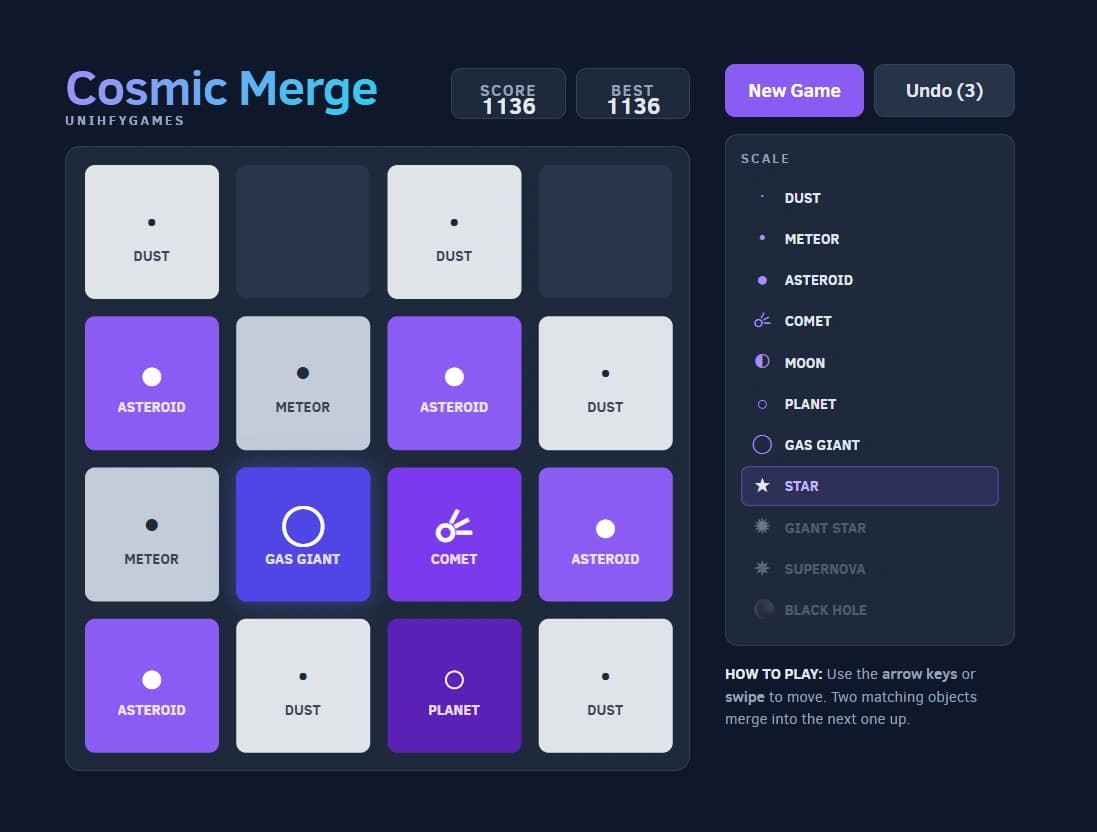

The table is where bundles happen, and that is the real time-saver

Pieces you place next to each other on the table, rather than directly onto the board, combine automatically into a single unit if they belong together. You can then pick up that whole bundle and drop it onto the board in one move instead of placing each piece individually.

This is the difference between playing the game efficiently and playing it slowly. Working piece-by-piece straight onto the board works, but building small clusters on the table first and dropping them in as blocks cuts down the number of individual placements substantially, especially at 250 or 500 pieces where the sheer piece count is the main source of fatigue.

The Split/Join option exists for exactly this style of play - splitting the drawer into two sections lets you keep, say, edge pieces in one group and a colour cluster you are actively building in the other, rather than hunting through one long unsorted strip for both.

Your progress is saved down to the piece, not just as a percentage

Leaving a puzzle mid-solve and coming back does not just remember that you were 40% done - it restores the board and table exactly as you left them, along with whatever view settings you had active, including Only Borders and whether the drawer was split. Nothing about your layout is lost by closing the tab.
That is worth knowing if you like to work in sessions rather than one sitting, since a 500-piece puzzle can reasonably take multiple visits, and there is no penalty at all for stopping partway through one.

Reviewed By
Omik Babariya

Developer · Quiz Editor

Omik Babariya is a full-stack developer and quiz editor at Unihfy Games. He writes most of the quiz questions, works on the sports and entertainment articles, and has built and tested a number of the games on the site.

View Profile
Game Created By

Tomás Malbrán

Puzzle Master was originally created by Tomás Malbrán and is published here under its original licence terms. We host and maintain this version, while preserving the required attribution.

Published in the original repository under the name puzzle.

How to Play

  • Select a puzzle category, then pick a specific puzzle image.
  • Choose the piece count (smaller counts are faster and simpler; larger counts are harder).
  • Press Start (or Continue if you’ve already worked on this puzzle).
  • Drag pieces from the drawer into the table area to position them and look for matching fits.
  • When you’re ready, drag a matching piece or bundle from the table and drop it onto the board area until it locks in.
  • Use Only Borders when you want to focus on the puzzle frame (the outer edge pieces).
  • Finish the puzzle by placing all pieces; you’ll see a completion message and can select a new puzzle.

Gameplay Preview

Features

Eighty puzzle images across eight categories - Art, Apple, Animal, Car, City, Gradient, Street and Wonder
Four piece counts per image: 50, 100, 250 and 500
Automatic combining of adjacent placed pieces into draggable bundles
Board “snap-in” placement when pieces fit correctly
Only Borders mode to speed up building the frame
Split/Join drawer view for managing pieces separately
Preview of the completed image available at any time
Timer, placed-piece counter, and progress percentage
Progress saved to the exact piece and layout, including your view settings
Full keyboard shortcuts alongside mouse controls

FAQs

How do I know when a piece will fit?

Move the piece into the board area and release it—when it matches the correct spot, it will lock in place and count as placed.

How many puzzles are there to choose from?

Eighty in total - eight categories (Art, Apple, Animal, Car, City, Gradient, Street and Wonder) with ten images each, and every one of them can be played at four different piece counts.

Which piece count should I pick?

50 or 100 if you want a quick, mostly visual solve where the picture itself helps you place pieces. 250 or 500 if you want something closer to a real jigsaw, where individual pieces stop looking like anything recognisable and matching shapes matters more than matching colours.

What does “Only Borders” do?

It filters the drawer so you only see edge (border) pieces. This helps you build the puzzle frame first before filling in the middle.

How does the table help?

The table is your workspace for trying combinations. Pieces you place next to each other there combine automatically into a bundle, which you can then drag onto the board as a single unit instead of placing each piece one at a time.

What is “Split” or “Join”?

Split toggles the drawer into two sections so you can separate pieces into two groups while you work. Join brings everything back into a single drawer.

Can I see what the finished picture looks like while I'm solving?

Yes - a preview of the completed image is available so you can work strategically toward it rather than placing pieces purely by trial and error.

Will I lose my progress if I close the tab partway through a puzzle?

No. The game saves your exact board and table layout, not just a percentage, along with settings like Only Borders and Split, so a 500-piece puzzle can be worked on across several visits without losing anything.

What happens after I complete the puzzle?

The game stops and shows a congratulations screen. You can then restart by selecting a new puzzle.

Ready for a New Challenge?

Take on exciting quizzes, improve your general knowledge, earn XP, collect rewards, maintain your daily streak, and compete with players on the Quiz Arena leaderboard.

Go to Quiz Arena